Docs

How Job Agent works, setup, billing, and your data.

Link

Getting started with Job Agent

Job Agent is an automated job application service. You set your profile once, and Job Agent continuously scans company career pages, scores new postings against your profile, and submits real applications on your behalf - including writing tailored answers to open-ended questions, tailoring your resume per role, attaching a cover letter when needed, and reading email-verification codes mid-flow when an application form requires one. Applications go out on a daily schedule.

The pitch in one line: set your profile once, and AI finds matches, tailors every application, and submits it directly to the company career site - every day, on autopilot.

Setup takes about 5 minutes

  1. Sign up with email and password, or Sign in with Apple.
  2. Build your profile - work history, skills, and contact info. Then add your target roles in Search preferences: job titles, locations, salary floor, work mode (remote / hybrid / on-site), and experience level. Upload a resume so we can tailor it per application.
  3. Set your search preferences - required keywords, companies to skip, and your match threshold.
  4. Connect your email so Job Agent can track application status (see "Connecting your email").
  5. Turn on Auto-Pilot Mode - applications start going out on the next scheduled run.

You can pause, tweak your preferences, or cancel anytime. Questions during setup? Start a support chat.

Was this helpful?
Link

How auto-apply works

Job Agent runs a four-step pipeline for you, every day:

  1. Find jobs - a daily scan of hundreds of thousands of live postings across thousands of company career pages, so new roles surface before the applicant pile-on.
  2. Match you to jobs - an AI scorer ranks each role against your title, stack, salary, location, and preferences. Only roles above your match threshold move forward. You can review matches on your dashboard and in Jobs.
  3. Apply automatically - forms are filled, email-verification codes are read mid-flow, and your resume plus cover letter are tailored to each job description, then submitted directly through the company's own application page (not a shared aggregator pool).
  4. Track your email - confirmations, interview invitations, and rejection signals are read from your connected email and linked back to the matching application in your dashboard.

What we ship that most tools don't

  • Email verification codes - many application forms send a 6-digit code mid-flow. Job Agent reads it from your inbox and finishes the submit.
  • Email status tracking - confirmations, interview invites, and rejections show up in your dashboard so you don't have to live in your inbox.
  • Direct company application pages - submissions go through the same form a human would use, not a shared aggregator pool.
  • AI form filling - open-ended questions are answered from your actual background, not generic boilerplate.
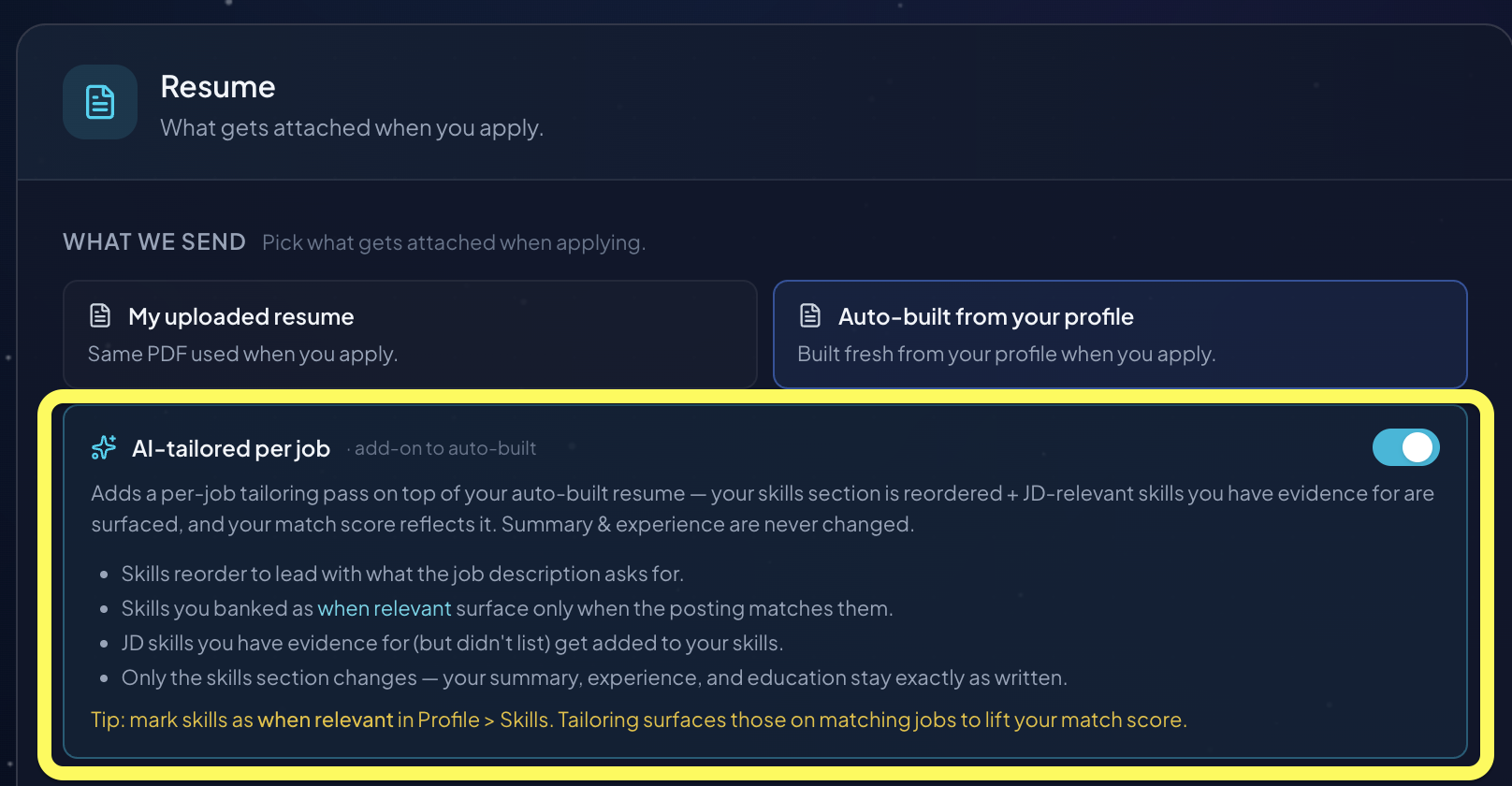
  • Tailored resume and cover letter per role - generated fresh per job description and keyword-aligned, not a static upload.

Will employers know it was a bot?

No. Submissions go through the same application form a human would fill, with your real profile data and context-aware answers based on your background. There is no mouse-spoofing or anti-detection trickery - the application reads as a normal, qualified one.

Everything runs server-side, 24/7. You do not need a browser extension or to keep your browser open.

Was this helpful?
Link

What Job Agent does not do

  • We do not spray-and-pray. We only apply to roles you qualify for that meet your match threshold.
  • We do not require a browser extension or your browser to be open. Everything runs server-side, 24/7.
  • We do not submit through shared aggregator apply pools. We submit directly to each company's own application page, so you aren't competing in a single oversaturated bucket.
  • We do not make performance promises (such as a specific interview rate or number of offers). Outcomes depend on your background, the job market, and timing.
  • We do not give legal, immigration, or employment-law advice - please refer to a qualified professional.
  • We do not store your email account's main password, and we have no access beyond what your app password permits.

How we compare

Versus browser-extension auto-fillers, Job Agent runs server-side so you don't need your browser open, and it handles mid-flow email verification codes plus a per-role tailored resume and cover letter. Versus spray-and-pray scripts, Job Agent scores and thresholds every match and writes context-aware answers from your actual background.

Have a question this doesn't cover? Start a support chat.

Was this helpful?
Link

Your dashboard

Your dashboard is the at-a-glance view of your whole search.

Dashboard

What you see

  • Profile readiness — checklist of what's needed before applications can go out
  • Apply pace — submitted vs. plan cap, time saved, and remaining apps
  • Pipeline — matched → queued → submitted → interview → rejected → failed
  • Recent activity — latest submitted applications and interview updates

Everything updates live after each daily pipeline run.

Was this helpful?
Link

Reviewing matches and applications

Everything Job Agent finds and does for you lives in Jobs, split into two views.

Matches

Matches are roles the scorer ranked against your profile. They move through lanes:

  • Matched - found and scored, ready to go into your apply queue.
  • Review - a borderline match near your threshold. You decide: queue it or skip it.
  • Queued - in the apply pipeline, waiting to be submitted on the next daily run.
  • Skipped - ones you (or your rules) chose not to apply to.

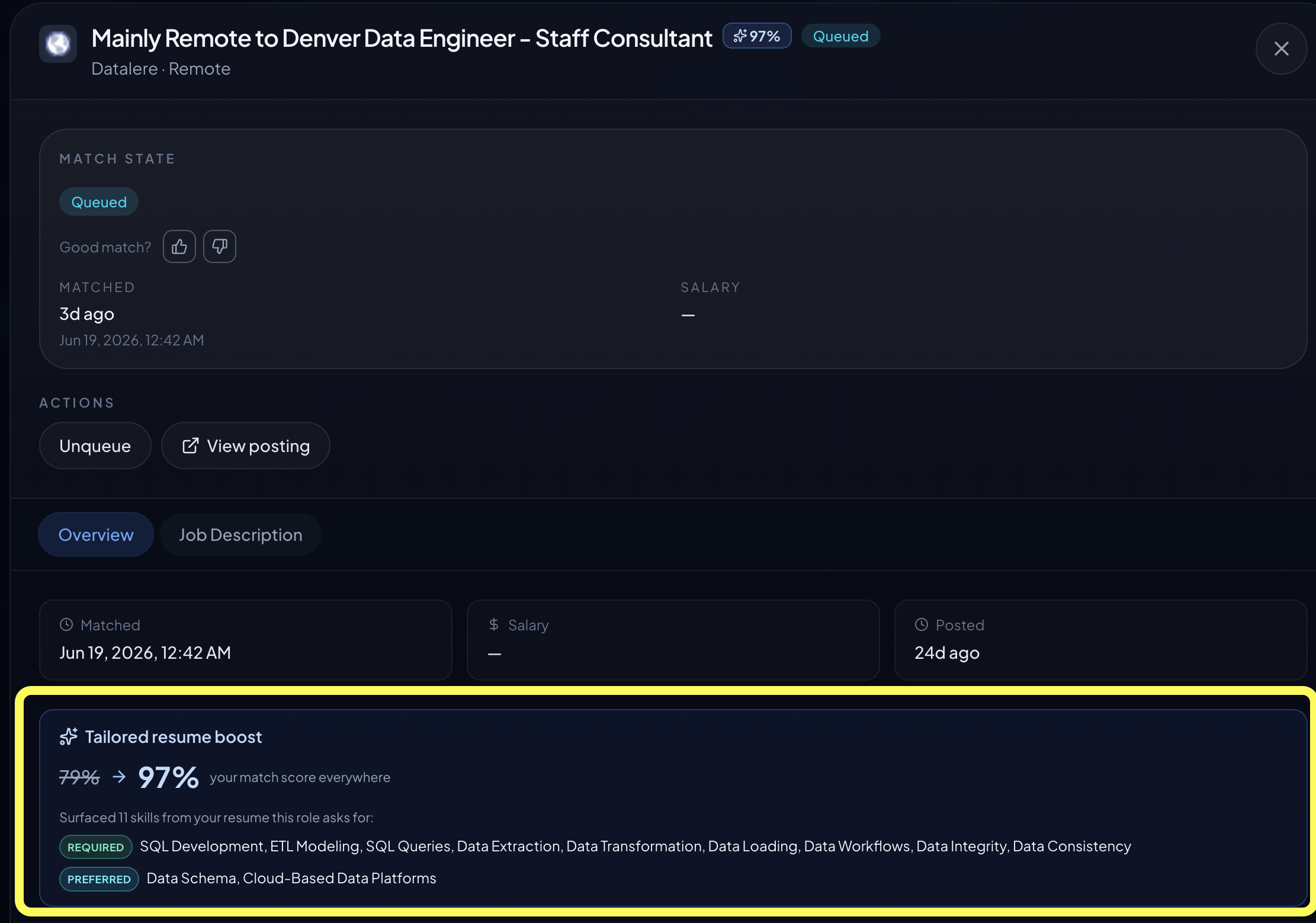
On any match you can queue it, skip it, or open it to see the score breakdown and why it matched.

Applications

Applications are roles Job Agent has applied to, or tried to:

  • Submitted - the application went through; awaiting a response.
  • Interview / Offer - a positive signal was detected in your connected inbox.
  • Rejected - the employer passed.
  • Needs input - paused because a form asked something we didn't have an answer for. Add the answer in Profile, Answers and it re-queues.
  • Error / Failed - the application hit a snag. Job Agent auto-retries up to 5 times; after that it's flagged for our engineering team. You don't need to act on these.

Open any application to see the answers submitted, the resume used, and any linked employer emails.

Was this helpful?
Link

Browsing and searching jobs

Beyond the roles Job Agent matches to you automatically, you can search the live job pool yourself from Jobs. Search by job title to see current openings across thousands of company career pages, then queue anything you want Job Agent to apply to.

This is handy when you want to cast a slightly wider net than your saved preferences, or check what's out there for a specific title. Anything you queue here goes through the same tailored-application pipeline as your automatic matches.

To change what gets matched automatically, update your Search preferences instead.

Was this helpful?
Link

Resume and cover letter

Manage what gets sent with every application in Documents.

Documents

Resume modes

  • Tailored — the bot rewrites your resume to mirror each posting's language. Better keyword-screen pass rate.
  • Base — sends your resume as-is.

Every tailored version is saved under /documents so you can review, download, or reuse it.

Cover letter

Turn on AI cover letters to auto-generate one per application. Some postings require them — with this off, those jobs get skipped.

Pro tip

Generate a professional summary from your resume in About You. It feeds into every tailored PDF the bot sends out.

Was this helpful?
Link

The AI assistant

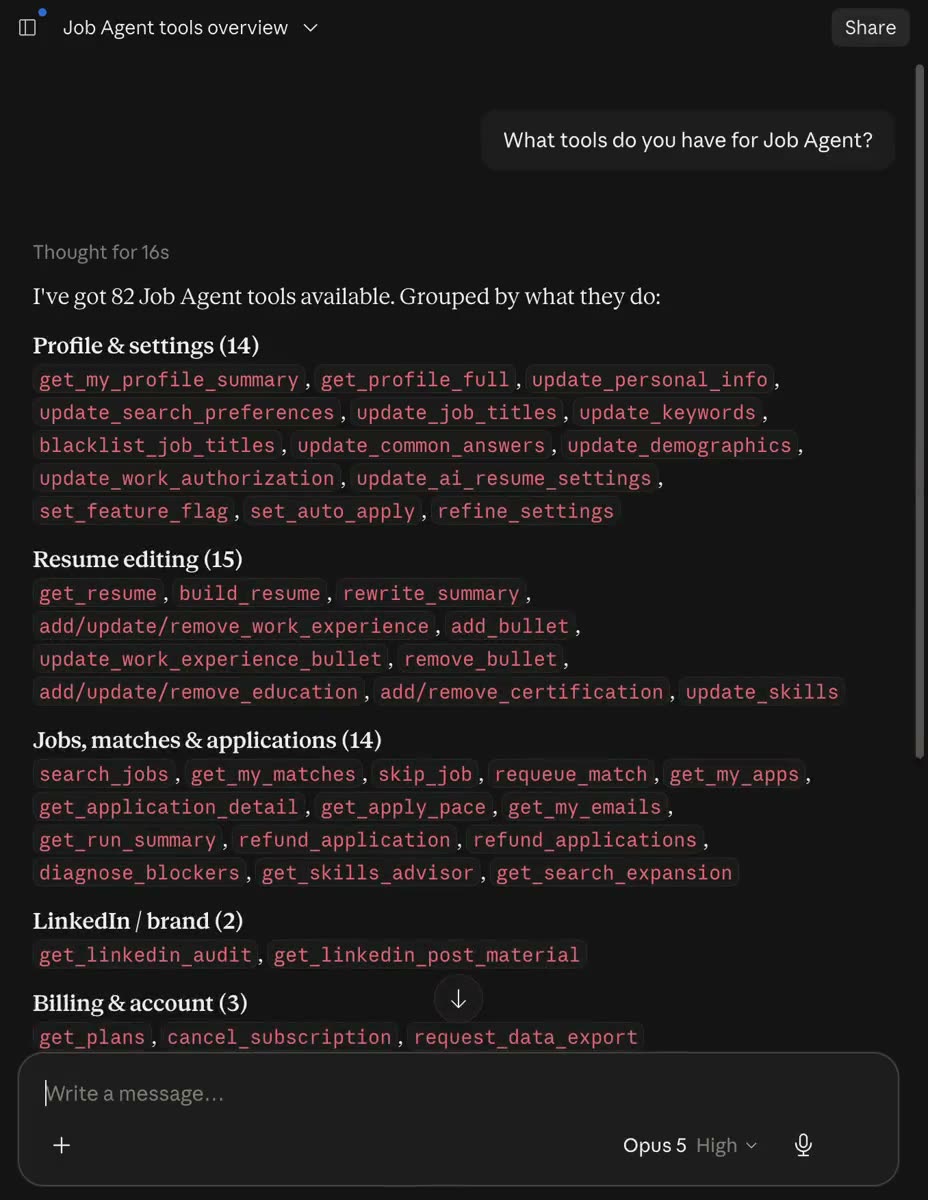
The assistant is a chat that knows your account. Ask it about your search and it answers with your real numbers — it can read your applications, matches, classified emails, skills, and run summaries.

AI Assistant

What it can do

  • Read your data — ask "how many apps went out today" or "what's my interview rate" and it pulls live stats.
  • Take action — say "requeue my rejected jobs from this week" or "cancel my subscription" and it does it, no menus.
  • Troubleshoot — "why did this app fail" pulls the exact debug record and explains what broke.

Open it from the sidebar or press Cmd+K and type "assistant."

Was this helpful?
Link

Getting help

Reach our team anytime from the in-app Support chat. Pick what your question is about, add a short description, and attach a screenshot if helpful.

Support Chat

Topics

  • Something is broken — tell us where and what you saw
  • Billing question — plan changes, charges, cancellation
  • Feature request — what would make this better
  • Account help — anything else, we'll route it

Replies are AI-assisted; a human reviews sensitive issues like billing disputes or account deletion.

Was this helpful?
Link

Match advisor

If your matches feel thin, the Match advisor in Jobs shows you why. It breaks down which of your preferences filtered the most jobs out.

Match Advisor

How to use it

  1. Go to Jobs
  2. Click the Advisor button
  3. See which filters are killing your match count, ranked by impact
  4. Click any recommendation to relax that filter and re-run matching

It's the fastest way to go from "nothing in my queue" to a pipeline of relevant roles.

Was this helpful?
Link

You can tell Job Agent when a match is good or bad. That feedback sharpens your future matches, and if we applied to a job that was not a good fit, you can get that application credited back.

Rate a match

Open any job in your workspace and use the thumbs up or thumbs down control.

  • Thumbs up tells us the role was on target, so we find more like it.
  • Thumbs down tells us it missed, so we steer away from similar roles.

Rating takes one tap and you can do it on any match, whether or not we have applied yet.

Get an application refunded

If we already applied to a job that was not a good fit, a thumbs down opens a short form. Tell us what was off (wrong role, location, seniority, and so on) and submit it.

When you do, we credit one application back to your plan. The credit is added to your remaining applications right away, so it goes toward landing the jobs that actually fit.

Limits

To keep things fair, refunds are capped per billing period:

  • Up to 5% of your plan's monthly application limit, with at least one refund always available.
  • Refunds apply only to jobs we actually submitted on your behalf.
  • A given job can be refunded once.

If you hit the cap, your feedback is still recorded and used to improve your matches, even though that downvote does not add another credit.

Why we ask

Every thumbs up or down trains your match quality. The more you rate, the better Job Agent gets at sending you roles worth applying to.

Was this helpful?
Link

The short answer

There is no fixed number of applications per day. Job Agent works toward a daily target calculated from your plan and how much of your billing period is left, then applies to as many qualifying matches as it can each day.

How the daily target is calculated

Daily target = your remaining applications for the period / days left until your target date (7 days before your period ends).

Example: Pro plan (100 apps/month) with 80 left and 20 days until the target date gives a daily target of 4 applications/day.

The 7-day buffer means the bot front-loads, aiming to finish your applications with a week to spare instead of rushing the final day.

Why the actual number varies day to day

Each day the bot applies to matches that clear your match threshold (default 5%, set on the Auto-Apply screen) and pass the apply checks (resume on file, work authorization, required fields). Some days surface more qualifying matches than others, so the real count rises and falls around the target.

Where to see your numbers

Dashboard, Apply pace card shows your daily target vs. what actually went out, day by day, across the current period. It is the source of truth for "am I on track." You can also ask the in-app Assistant "what's my daily target" or "am I on track today."

What stops applications from going out

  • Auto-apply is off (turn it on under Auto-Apply).
  • You've hit your plan's monthly cap (upgrade, or wait for the reset).
  • Profile gaps (no resume, missing work authorization, or no job titles).
  • Few matches clear your threshold (lower it on Auto-Apply, or use Match Advisor).

Increasing your daily throughput

  • Upgrade your plan for a higher monthly cap and daily target.
  • Lower your match threshold or broaden job titles so more matches qualify.
  • Complete your profile so no applications get blocked at submit.
Was this helpful?
Link

Skills advisor

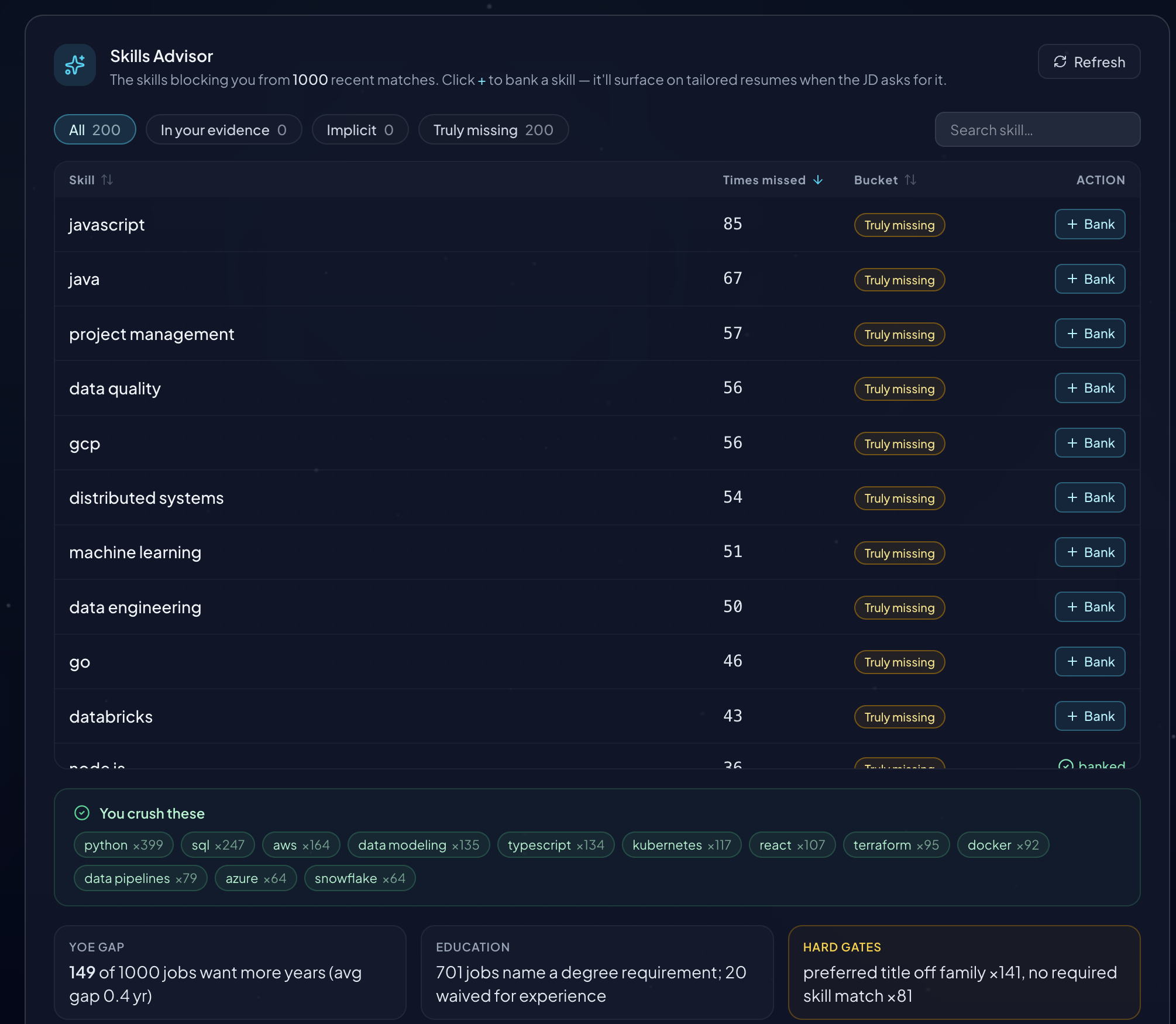
The Skills advisor pulls the most-requested skills from jobs you would be a fit for and shows which ones are missing from your profile.

Skills Advisor

How it works

  1. Go to Profile > Skills
  2. Click Run Skills Advisor
  3. It scans your recent matches and finds skills you have not banked yet
  4. Click + on any skill to add it to your profile

Skills you bank appear on tailored resumes when a job description asks for them, improving your match scores.

Auto-bank skills

Turn on Auto-bank Skills in the same section and skills from every job you match with are automatically added to your profile. Hands-off skill growth.

Was this helpful?
Link

Job market

The Job Market is a real-time dashboard of what is hiring across the ATSes we scan.

Job Market

What you will see

  • Top hiring companies — who is posting the most right now
  • Salary distribution — where the money is by role and level
  • Posting velocity — week-over-week changes in volume
  • AI-titles trend — growth data on Forward-Deployed Engineer, AI Engineer, AI PM, and similar roles

It is the same data that powers your matches, just zoomed out to market level.

Was this helpful?
Link

Connecting your email

A connected inbox is required to apply. Job Agent can still find and match jobs to your profile without one, but it cannot submit applications until you connect an inbox. Here's why: many application forms send a 6-digit verification code mid-flow, and Job Agent reads that code from your inbox to finish submitting. Without a connected inbox, matches just wait in your queue.

Connecting an inbox also lets Job Agent track your applications: it reads job-related emails and classifies them - confirmations, interview invites, offers, and rejections - and surfaces them on your dashboard, so you don't have to live in your inbox.

You connect it at Settings, then Application Email.

Use a dedicated inbox, not your personal email

We strongly recommend creating a new, dedicated email account just for job applications. Connecting an inbox gives Job Agent read access to it, so a clean dedicated address keeps your personal mail out of scope and makes turning access off trivial.

The setup steps

The in-app guide at Settings, then Application Email walks you through:

  1. Create a new dedicated email account at accounts.google.com/signup - a fresh inbox just for job applications. Stay signed in to it for the next steps.
  2. Turn on 2-Step Verification at myaccount.google.com/signinoptions/two-step-verification - this is required before an app password can be issued.
  3. Create an App Password at myaccount.google.com/apppasswords and name it "Job Agent". You are shown a 16-character password once - copy it before closing the dialog.
  4. Paste the email address and app password into the card at Settings, then Application Email, then click Save Connection. Job Agent verifies the credentials and encrypts them at rest with AES-256-GCM.

What we read, and what we don't

Job Agent connects over IMAP using your app password - not a sign-in / OAuth flow. The scope is narrow: only job-application emails (confirmations, interview invites, rejections), filtered by sender and subject patterns. We never read personal email outside that pattern, and we never store your account's main password. You can revoke access anytime in your email provider's account settings, and access is lost immediately.

Trouble connecting? Start a support chat and we'll help.

Was this helpful?
Link

Plans and billing

Every plan is month-to-month with no annual lock-in, and each has a monthly application limit:

PlanPrice / monthApplications / month
Free$01
Starter$1925
Pro$49100
Growth$99250
Max$199500
Scale$3991,000
Ultra$5991,500

Free requires no credit card. Paid plans bill monthly in advance and renew automatically until you cancel.

Changing plans

Upgrade or downgrade anytime at Settings, then Billing. When you hit your plan's monthly application limit, applications pause until the next billing cycle resets it - or until you upgrade.

Billing question? Start a support chat.

Was this helpful?
Link

Canceling, pausing, and refunds

Taking a break (without canceling)

If you just want to stop new applications for a while, you don't need to cancel or delete anything. Turn off Auto-Pilot Mode on your Profile. Your account, subscription, history, and matches all stay intact - nothing new submits until you switch it back on. This is the right option for "I want a break."

Canceling your subscription

Cancel anytime at Settings, then Billing - one click, no retention maze. Cancellation takes effect at the end of your current billing period: you keep full access and your remaining application allowance through the period you already paid for, then your plan drops to Free.

Refunds

We do not refund partial billing periods. Canceling stops your next renewal but does not refund the current month - you keep access for the rest of that month. If something went wrong with a charge, start a support chat and we'll look into it.

Was this helpful?
Link

Notifications

Control how Job Agent reaches you at Settings, then Notifications.

Where you hear from us

  • Email to your account address.
  • Browser push notifications.
  • In-app alerts on the bell icon (always on).
  • Slack - paste a webhook URL to receive updates in a channel (optional).

What you get alerted about

You can toggle each event on or off, per channel. Interview invites and offers are on by default; quieter events like application confirmations, "needs your input", and submission digests are off by default and can be turned on. Rejections are kept low-key.

Email housekeeping

Job Agent can also tidy your connected inbox automatically - archiving routine confirmations and rejections, and starring interviews and offers so the important ones stand out.

Promotional and product-update emails are a separate opt-out from these transactional alerts.

Was this helpful?
Link

Rewards and referrals

Invite friends from Settings, then Rewards. You get a unique referral link to share by email, on social, or by copying it directly. You can also send invites straight from the page, and the invite email is signed with your name and includes your link.

As friends join through your link, you climb the reward tiers - the Rewards page shows your current tier, how many people you've invited, and your progress toward the next one. Check the page for what's unlocked at your tier.

Questions about a referral? Start a support chat.

Was this helpful?
Link

Accessibility

Tune the app to your needs at Settings, then Accessibility:

  • Text size - choose from small up to extra large; it applies across the whole app.
  • Reduced motion - Job Agent honors your operating system's "reduce motion" setting and turns off entrance animations and chart transitions automatically, so there's nothing extra to switch on.

Job Agent uses a single dark theme throughout. If you hit an accessibility barrier we haven't covered, start a support chat and tell us - we want to fix it.

Was this helpful?
Link

Why aren't my applications going out?

There are two separate questions here, and the fix is different for each:

  1. "I don't see any matches yet." Matching just scores live jobs against your profile - it doesn't need any of the apply-time setup below. If you have no matches, your profile is missing one of the basics the scorer needs.
  2. "I have matches, but nothing is being submitted." That's the apply step, which needs a bit more so the bot can fill out and submit real forms on your behalf.

To start seeing matches

You'll get matched once your profile has all of these - and none of these require connecting your email:

  1. Your full name - Profile, About You
  2. A resume uploaded - Documents
  3. At least one target job title - Search preferences
  4. At least one work experience entry - Profile, About You
  5. Work mode (remote / hybrid / on-site) - Search preferences
  6. Experience levels (entry / mid / senior / staff) - Search preferences

You do not need a salary preference to be matched. If you set a minimum, we use it to refine your matches, but leaving it blank never blocks matching.

To have applications actually submit

Once you're matched, applications submit automatically when all of the above are done plus the items the bot needs to complete a real application:

  1. Onboarding finished - Get started
  2. Your work authorization answer - Answers
  3. Your ZIP / postal code - Profile, About You (most application forms require it)
  4. A connected email inbox - we read the verification codes employers email during apply

Until your email is connected and the rest is filled in, strong matches show up as matched but stay in your queue instead of submitting.

Two more things that pause submissions

Even with a complete profile, applications won't go out if:

  • Auto-Pilot Mode is off - with it off, matches wait in your manual queue instead of submitting. Turn it on to let them go automatically.
  • You've hit your plan's monthly limit - applications pause until your next billing cycle. Check or change your plan at Settings, then Billing.

About failed or stuck applications

You don't need to act on applications that show as errored, failed, or blocked. Job Agent auto-retries each one up to 5 times, and after that it's flagged for our engineering team, who routinely re-process flagged applications and ship fixes for blockers.

Still stuck after checking all of the above? Start a support chat and we'll dig in with you.

Was this helpful?
Link

System status

The public status page shows the live health of the Job Agent pipeline - no login needed. It breaks the pipeline into its five stages and shows the state of each:

  • Discover - finding new jobs across company career pages.
  • Match - scoring jobs against your profile.
  • Apply - submitting tailored applications.
  • Scan - reading employer replies and classifying outcomes.
  • Notify - sending your alerts and digests.

Each stage reads operational, degraded, outage, or maintenance, with a short note when something isn't fully green and a "last checked" timestamp. If your applications or status updates seem delayed, check here first to see whether a stage is having trouble.

Was this helpful?
Link

Your data and privacy

Security baseline

  • Your data lives in Postgres with row-level security on every table - only you can read your own data.
  • Your profile and sensitive credentials (like your email app password) are encrypted at rest. Credentials use AES-256-GCM.
  • We never sell your data, and we never share it with employers beyond what your application itself contains.
  • We never read personal email outside the narrow job-application scope.

How AI providers are used

Job Agent uses third-party AI providers, each acting only as a data processor that does not train its public models on your data:

  • Resume tailoring, cover letters, bio summaries, and the in-app assistant are powered by AI that receives your resume text, profile data, work history, skills, location, and application questions.
  • Job-to-profile matching uses only short skill and keyword summaries - no raw resume or contact data.
  • Extraction of role requirements from job descriptions uses only the job-description text, with no personal data.

You consent to this the first time you upload a resume; consent is timestamped and versioned. If the provider list changes materially, you are re-prompted. Consent is revoked when you delete your account.

Data retention

  • While your account is active, your data is kept as long as the account is active.
  • When you delete your account, your data is removed immediately. (Our Privacy Policy commits to deletion within 30 days at the very latest, but in practice the wipe happens right away.)
  • Application screenshots are kept on a 90-day rolling basis (used for form field-mapping and error logging during submission).
  • Payment and financial records are de-identified (no longer linked to you) and kept as long as tax and accounting law requires.

Your privacy rights

  • Everyone can view and update profile data in-app, delete their account, and request a data export.
  • We do not sell personal data, ever.
  • California residents (CCPA) have the right to know, the right to delete, and non-discrimination for exercising those rights.
  • EU / EEA residents (GDPR) have rights to rectification, restriction, portability, objection, and withdrawal of consent.
  • We honor the Global Privacy Control (GPC) browser signal.

To exercise any right, start a support chat. Full detail is in the Privacy Policy.

Account basics

  • You must be 18 or older to use Job Agent.
  • Sign in with email and password, or Sign in with Apple.
  • Job Agent is operated by Zink Labs LLC, and the Terms are governed by the law of the State of Florida.
  • Legal documents: Terms, Privacy Policy, Cookie Policy, and Data Processing Agreement.
Was this helpful?
Link

Exporting or deleting your data

Exporting your data

While your account is active, you can request a copy of your data in a machine-readable format anytime - start a support chat. Request your export before you delete your account: deletion removes your data right away, so there is nothing left to export afterward.

Deleting your account

You can permanently delete your account yourself at Settings, then Danger Zone, then type DELETE to confirm. Deletion happens immediately and is irreversible. In one pass it:

  • Cancels your active subscription right away, with no further charges.
  • Deletes your profile, preferences, and uploaded resume.
  • Deletes all application history and screenshots.
  • Deletes all matched jobs and saved data.
  • Removes your connected email and stored credentials.
  • Deletes your account login itself.

A confirmation email is sent afterward. Your data is removed immediately; the only thing kept is de-identified financial records (payment amounts, invoice and Stripe IDs, dates) that are no longer linked to you, retained as long as tax and accounting law requires. Deleting your account also revokes AI-data-sharing consent. There is no recovery after deletion.

If you only want to stop applications for a while, turn off Auto-Pilot Mode on your Profile instead - that keeps your account and history intact.

Was this helpful?

Still stuck? Start a support chat and our team will help.